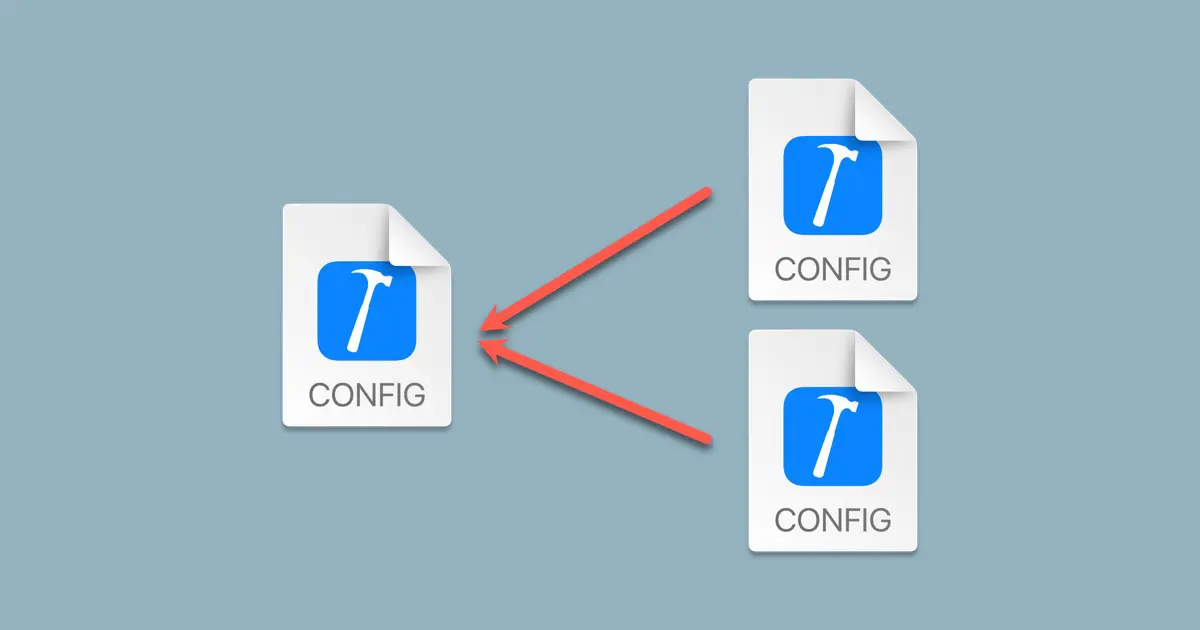
When developing an iOS app that you plan to distribute as open source or sample code, you might prefer not to embed code signing settings directly into the project file. However, while working locally, you must set the code signing settings. Otherwise, you will not be able to install it on the device.
In these scenarios, employing a build configuration file for code-signing settings proves beneficial.
Create the build configuration file
For more information about how to create the build configuration file, please see the following article.
Using the above article as a guide, create the following three build configuration files.
Debug.xcconfigRelease.xcconfigSigning.xcconfig
Set Debug.xcconfig to debug build and Release.xcconfig to release build.
Write the following in Debug.xcconfig and Release.xcconfig to include Signing.xcconfig.
#include? "Signing.xcconfig"Configure the code signing
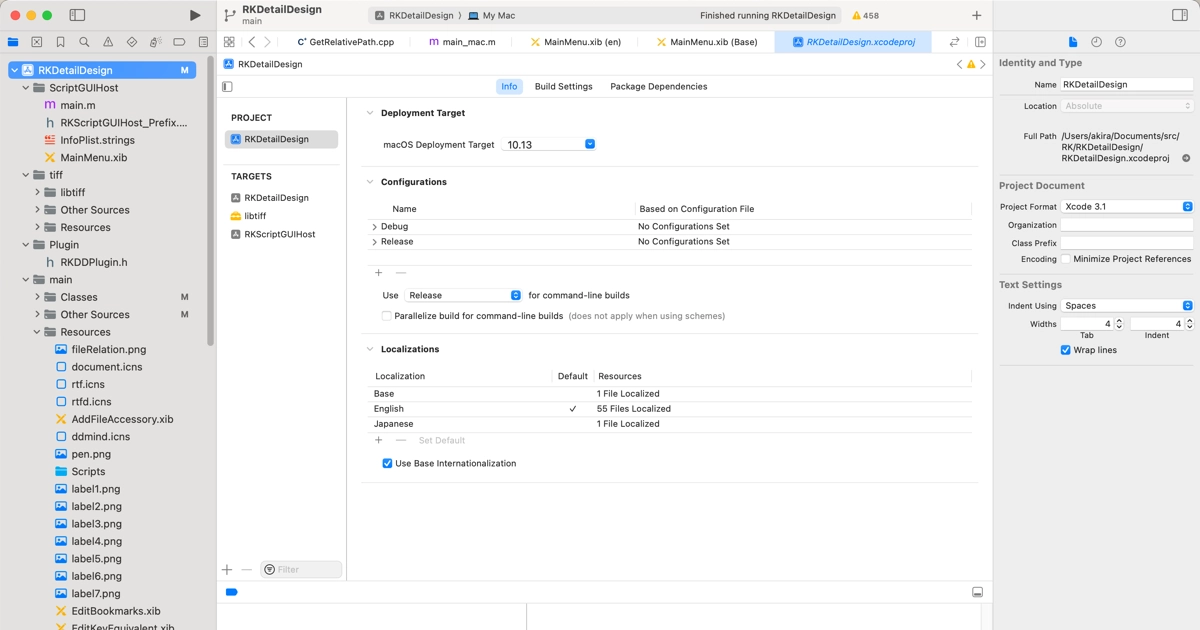
In Xcode, code signing is set up in the following places.
Signing & Capabilitiestab of each build target.SigningofBuild Settingstab.
Signing & Capabilities tab
The Signing & Capabilities tab for each target sets target-specific code signing settings. The values in this tab are also set in the Signing of the target’s Build Settings.
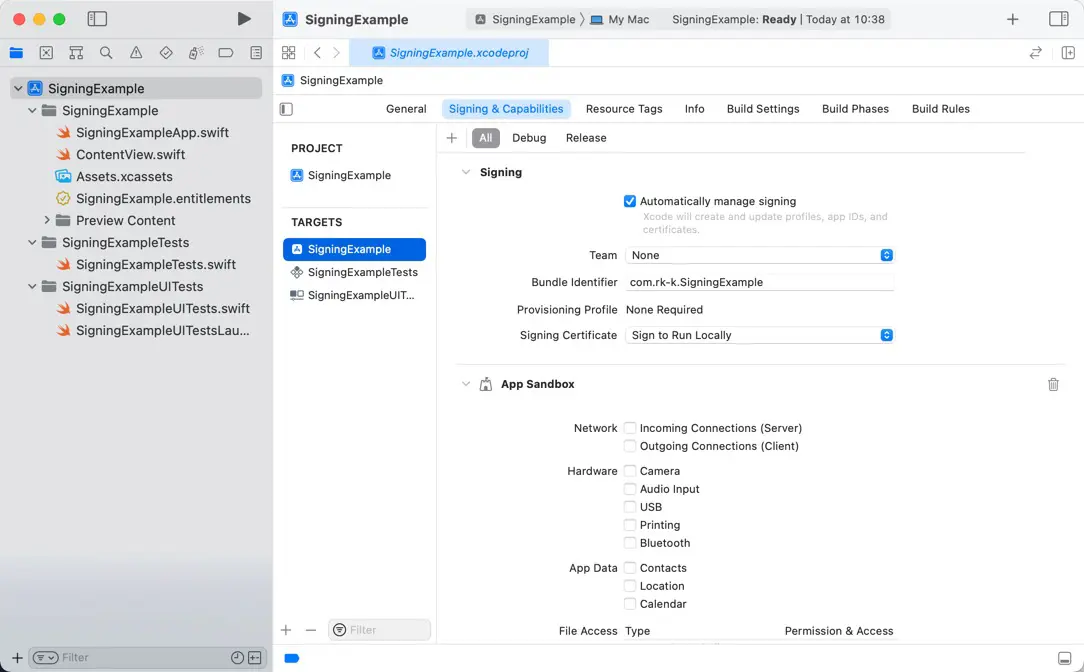
The configuration items are grouped under Signing.
| Setting items | Description |
|---|---|
| Automatically manage signing | Whether Xcode manages the signing settings or not. |
| Team | The developer team |
| Bundle Identifier | The bundler identifier of the target |
| Provisioning Profile | The provisioning profile of the target |
| Signing Certificate | The code signing certificate |
Build Settings tab
The Signing of the Build Settings tab contains code-signing-related settings, and the Signing & Capabilities and the Build Settings tabs are synchronized. Signing & Capabilities tab is synchronized with the Build Settings tab.
Signing & Capabilities tab is not available in the project settings, but Build Settings tab is also available in the project settings.
Typically, we configure this in the Build Settings tab of the project, rather than in the target settings, because all targets within the project use the same code signing settings.
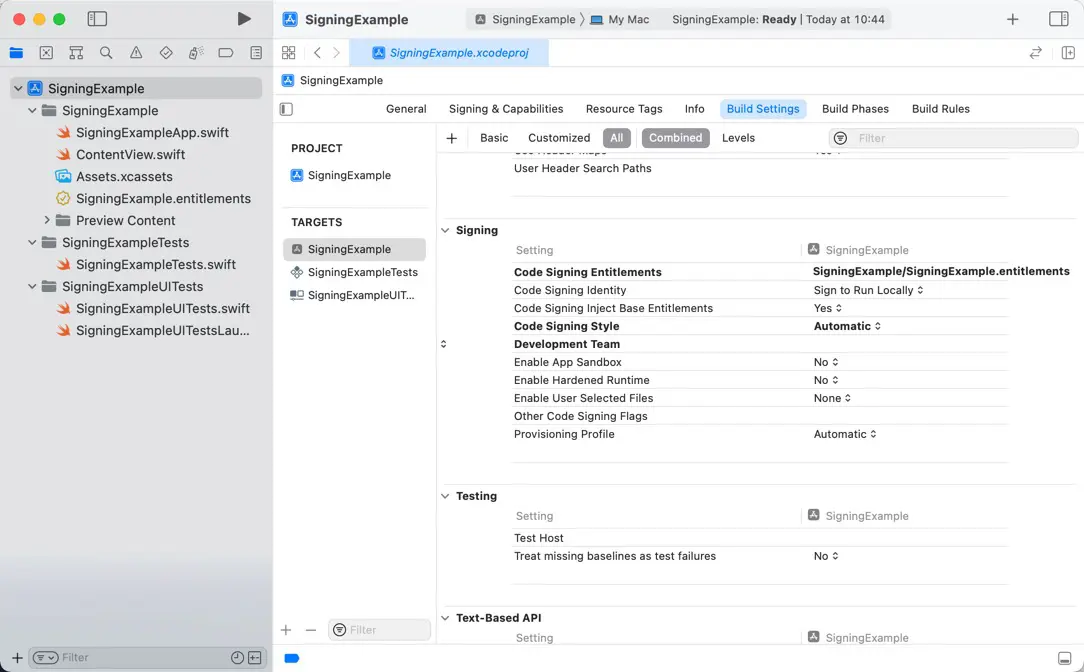
The settings related to the code signing are the following.
| Setting items | Description |
|---|---|
| Code Signing Identity | The code signing certificate |
| Code Signing Style | Whether Xcode manages the settings or not |
| Development Team | The developer team |
| Provisioning Profile | The provisioning profile |
Clear the signing settings of the project file
Prior to modifying the code signing settings in the build settings file, you should clear the existing values in the project file. Xcode will prioritize the project file settings if they are written in both the project and build settings files.
Do as follows.
Code Signing IdentityDevelopment TeamCode Signing StyleProvisioning Profile
Items in bold have been changed from the inherited or default values, and the settings are cleared using the Delete key.
Edit the build settings file
Edit Signing.xcconfig to configure code signing. There are four items to configure.
CODE_SIGN_STYLEDEVELOPMENT_TEAMCODE_SIGN_IDENTITYPROVISIONING_PROFILE_SPECIFIER
CODE_SIGN_STYLE
CODE_SIGN_STYLE specifies whether the Xcode manages the code signing settings. The following values are defined.
| Value | Description |
|---|---|
Automatic | Turn on Automatically manage signing. |
Manual | Turn off Automatically manage signing. |
DEVELOPMENT_TEAM
DEVELOPMENT_TEAM specifies the development team. The value is a team ID. The team ID is displayed at TEAM ID on the Apple Developer website’s Membership Details page.
CODE_SIGN_IDENTITY
CODE_SIGN_IDENTITY specifies the code signing certificate to sign. The value is a certificate name that is displayed in Xcode. For example, Automatic setting is Apple Development. Specify the name containing the team ID, like Developer ID Application: Akira Hayashi (XXXXXXXX) in the keychain. Replace the (XXXXXXXX) with your team ID.
PROVISIONING_PROFILE_SPECIFIER
PROVISIONING_PROFILE_SPECIFIER specify the provisioning profile file. The value is name or UUID.
Example of the sample configuration settings file
The following code is a sample of Signing.xcconfig.
CODE_SIGN_STYLE = Automatic
DEVELOPMENT_TEAM = ABCDEFGHIJ
CODE_SIGN_IDENTITY = Apple Development
PROVISIONING_PROFILE_SPECIFIER = ExampleProfile
Remove from git management
You use Signing.xcconfig to avoid including code signing settings in the deployed project file, so you should exclude Signing.xcconfig from git management. To avoid build-failure when the Signing.xcconfig is missing, use the #include? statement to include it in the Debug.xcconfig and Release.xcconfig.